Using an External 800K Disk Drive with Mac 512K
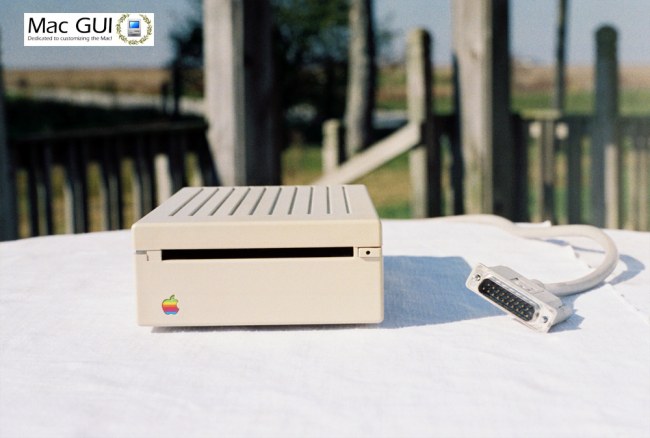
In this article we are going to talk about double-sided, 800K disk drives for the Mac 512K. We will clarify some misunderstandings and explain some other useful points.
The 800K double-sided drive was one of the best things to happen to the Macintosh, and is really something that it should have shipped with in 1984. There were some third-party double-sided drives available in 1985, but Apple did not debut its own Macintosh 800K External Drive until January 1986 with the Macintosh Plus.
But if you have this drive, I suggest you lose it fast and get an Apple 3.5 Drive, Model No. A9M0106, as shown in the pictures above and below. Not only is the Macintosh 800K drive ugly (one of the ugliest Apple peripherals ever designed for classic Macintosh), but it is also less compatible than the later Apple 3.5 drive, because it requires either the new 128K ROM, or booting from the HD 20 Startup disk. Plus, the Apple 3.5 Drive works on the Apple IIgs too.
All of the practical, how-to information in this article is written assuming an Apple 3.5 drive, as it will function as-is on the original 64K ROM.
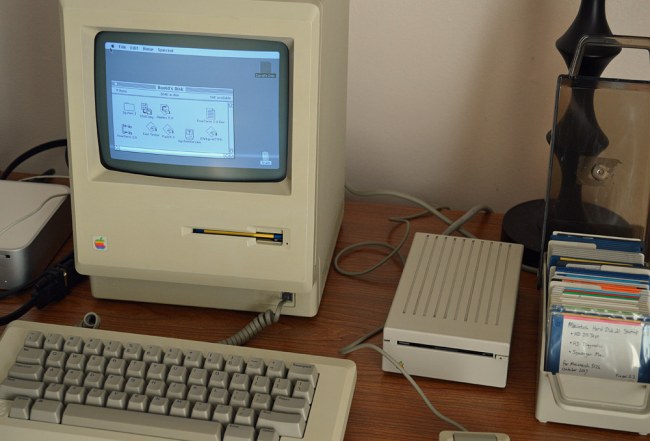
History of Double-Sided 3.5" Drives on the Macintosh
The Macintosh was designed to use double-sided drives from day 1 in 1984. Not only was the 860K Twiggy drive used in prototype Macs up til mid-1983 double-sided, but the Macintosh Operating System in ROM includes provision for double-sided drives in both the File Manager and Disk Driver. Accordingly, the physical hardware in every Mac 128K and 512K is designed for both single- and double-sided drives: one of the IWM's Disk Registers is for declaring whether a drive is single- or double-sided.
The May 14, 1984 edition of EE Times printed a rumor that the Fat Mac will feature a hard drive (or an interface for one), 512K of RAM, and double-sided drives, if Apple could get them. Later in August, Mike Shebanow said that his Apple dealer told him a similar rumor:
| Mike Shebanow in fa.info-mac, 24 Aug 1984 wrote: |
| He said that in addition to the 512K of RAM, there would also be an update which added an internal 20 meg hard disk. Microdisk capacity should also be updated to 800K. Still on schedule for next January or February. The odd thing is that he said that the hard disk would be INCLUDED in the $1000 update cost! |
A further rumor in November 1984 indicated that Tandon was supplying Apple with 20 MB, 3.5" size hard disks.
Apple intended to ship a double-sided drive as soon as they could get drives in quantity from Sony. Reportedly, Sony's holdup was patent litigation from rival drive-maker Tandon. Shugart Associates also produced a double-sided 3.5" drive.
In a Compuserve interview with Andy Hertzfeld, summer 1985, Andy answered a question about availability of a double-sided drive upgrade, saying:
| Andy Hertzfeld in Compuserve interview, summer 1985 wrote: |
| Yes, there will be an upgrade to replace the internal drive. It will be optionally bundled with the new ROM so you only have to open the Mac up once. It will be available in the same time frame as the new ROM. |
Several third-parties sold double-sided drives in 1985 and 1986. HabaDisk seems to have been the first one on the market in spring 1985, but their product was a single-sided drive that could be upgraded to a double-sided mechanism when it became available. According to Tim Smith, who called Haba in July 1985, the 800K mechanism was not yet available and they were still deciding on a vendor. Here are several companies advertising an 800K drive that I found while browsing Macworld magazine:
- HabaDisk 800K DS/DD Drive
- Mirror Magnum 800K Drive (also had an internal upgrade kit)
- Bal Mac535-20 800K External drive
- DataSpace 800K Disk Drive
- Microtech Peripherals Double Sided 800K External Drive
- Warp Nine Phaser 800 Drive
- Maple Technology MT-3002 800K drive
In 1986, the Macintosh Plus Disk Drive Kit (P/N M2516) upgraded a 128K or 512K Macintosh with the 800K double-sided drive and the 128K ROM. It cost $299, which included dealer installation and a Macintosh Plus System Tools Disk. An included manual, Macintosh Plus Internal Disk Drive, explained the new features present in the Macintosh Plus Finder as well as the new HFS, and the differences between single- and double-sided disks.
The Apple External 800K Drive sold for $499, and required the new 128K ROM or the Hard Disk 20 file.
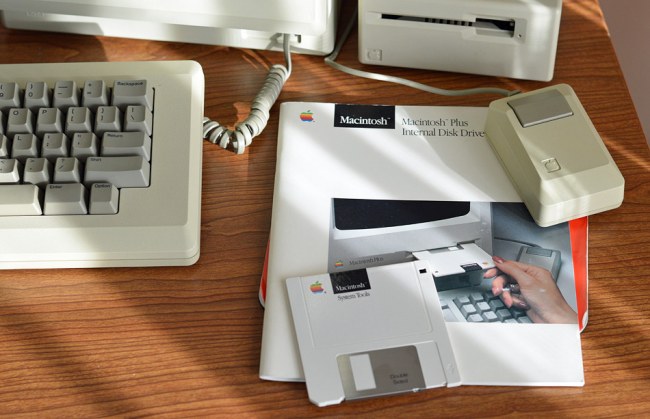
Early adopters of the new System 3.1 file had to deal with an annoying bug in the new Disk Initialization Package: a single-sided disk initialized in a double-sided drive was unreadable on an old, 400K single-sided drive!
Furthermore, RAM-based HFS as supplied with the Hard Disk 20 was incompatible with some 3rd-party 800K drives, such as the HabaDisk. The trouble was with the motor speed control. The old Sony 400K drives relied on the Mac's 68000 CPU to control the speed, while the new 800K Sony drives had built-in speed control. The new Sony driver in RAM-based HFS was written assuming automatic speed control, thus it did not work with 3rd-party drives. Darin Adler did some research and produced a small patch for the Hard Disk 20 file that will allow 3rd-party double-sided drives to work.
A similar patch was also posted in the Delphi Digest Volume 2, Issue 1:
| BMUG, January 1986 wrote: |
| All you who have non Apple 800k drives know by now that they will [not] handle or boot a HFS disk. It has something to do with speed controls in the SONY speed control drivers in the HD 20 system file. I have tried this patch on a Haba 800k drive and it works fine. I assume it will work with all other drives except the Apple 800 drive Here it is. The patch for "Hard Disk 20" is as follows: Find: 4A31 1005 6B04 4A42 Change: 4A31 1005 4E71 4A42 Find: 4A31 1005 6A02 4E75 Change: 4A31 1005 6002 4E75 |
How to Format an 800K MFS Disk
This isn't difficult as long as you use an Apple 3.5 drive. You need to boot an HFS System/Finder with the Hard Disk 20 file, then switch-boot to a System/Finder combination that doesn't know about HFS. The best choice then would be System 2.0/Finder 4.1. The Mac's ROM version does not matter, only what's in the System file on disk.
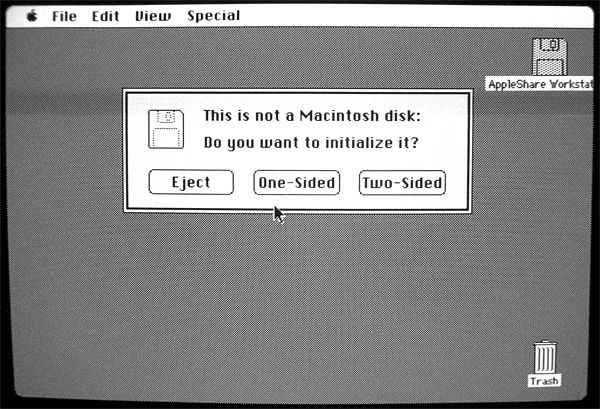
This screenshot above shows the new, HFS-aware Disk Initialization Package that is part of the version 2.1 and later System file.
The Disk Initialization Package (described in Inside Macintosh Volume II) in the System resource file is responsible for zeroing the disk, verifying it, then laying down the empty directory information. It is package number 2. The function DIZero within the package writes the volume information, a block map, and a file directory as for a volume with no files. It's the last step in disk initialization, after which the volume is mounted.
Here's the procedure:
1.) Boot the Hard Disk 20 Startup Disk, the AppleShare Workstation disk, or any disk that has an HFS-aware System/Finder combination and the Hard Disk 20 file. This step loads the improved 800K Sony driver into RAM.
2.) Now insert a disk with System 2.0/Finder 4.1, and switch launch into the Finder by holding Command-Option while double-clicking the Finder icon. This step will cause the MFS-only Disk Initialization Package to be loaded from the older System file, while keeping the newer Sony driver loaded.
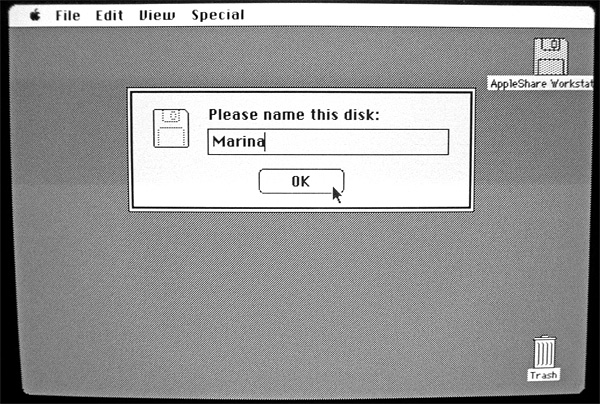
3.) Eject the boot disk from step 1, and insert your disk to be initialized into the 800K drive. Either choose Erase Disk from the Special menu, or follow the initialization dialog if the disk had never been formatted for Macintosh.
The Mac will automatically recognize that it's a double-sided disk so you will end up with an 800K MFS volume. That's it.
If you wanted, you could copy PACK ID 2 from the old System file into a newer System file. Then you would only be able to format MFS disks. Or, conceivably, you could copy the newer HFS-aware PACK ID 2 back to an older System file.
If you are using a Mac 512Ke with the new 128K ROM, then you can skip step 1. It is enough to boot straight into System 2.0/Finder 4.1, as you already have the improved Sony driver in ROM; all you need is the MFS-only Disk Initialization Package that is a part of the old, pre-HFS System resource file.
Using 800K MFS Disks
There's not too much to say. You will find that an 800K MFS disk works just like a single-sided MFS disk but with double the capacity. It will be recognized under any Finder version. If the 800K MFS disk has boot blocks and a System/Finder, you can boot from it too. You don't need the Hard Disk 20 file.
If you're using a Mac 512K with the original 64K ROM, but without the Hard Disk 20 file, you will notice that the 800K drive sounds different when seeking. It's a rougher sound.
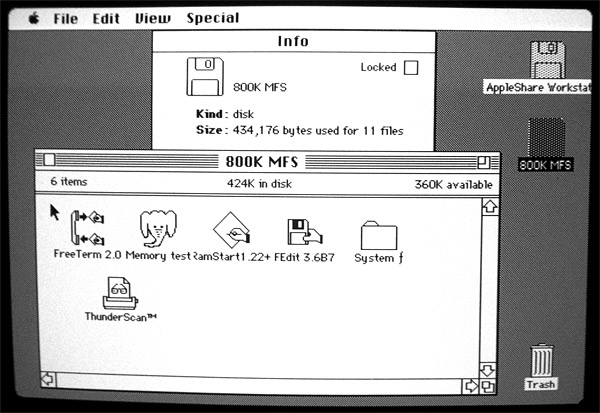
Once formatted as double-sided, the disk will not be readable in the 400K drive. That's because the disk is arranged not like a piece of paper where you write all on one side, then flip to the other side, but instead it is arranged in cylinders. Track 0 is on the bottom, then track 1 on the top surface, then track 2 on the bottom surface and so on, flipping back and forth.
If you insert a double-sided 800K disk into a 400K drive, the Mac can detect that it's double-sided (and will tell you so!) as long as you have the Hard Disk 20 file loaded, or you are using a Mac 512Ke with the new 128K ROM.
How to Format a Single-Sided HFS Disk
Let's say you want a single-sided, 400K HFS disk. Here's what to do: when erasing a disk, at the "Please name this disk" dialog, after you type the name, press Option-Return. Or hold down Option while clicking OK. The Mac will lay down a 400K HFS catalog on the disk.
Now that we've learned about 800K disks on the Mac 512K, the next blog article will show how to use BackDown, an XMODEM download Desk Accessory, to transfer files to the Mac 512K.
| The Mac 512K Blog wrote: |
| This blog chronicles the Macintosh 512K and my projects with it. We will test software, fix hardware, program it, hack it, and generally take the 512K Macintosh to its limits. Do leave any feedback you may have by posting a comment to this article. |

